Research
How to Reduce Support Ticket Volume with a Knowledge Base
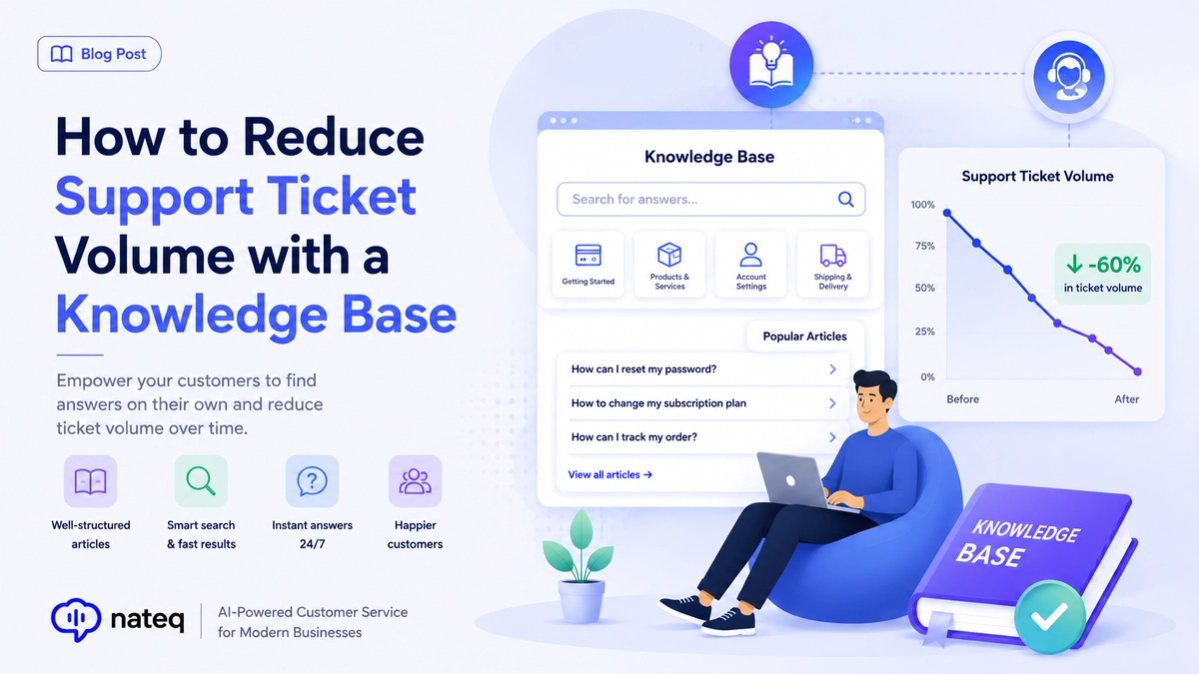
A great knowledge base deflects repetitive tickets and helps customers help themselves. Here’s how to build one that actually lowers ticket volume.
2 min readOrganize articles into intuitive categories and subcategories so customers can browse naturally and find answers themselves, without ever opening a ticket.
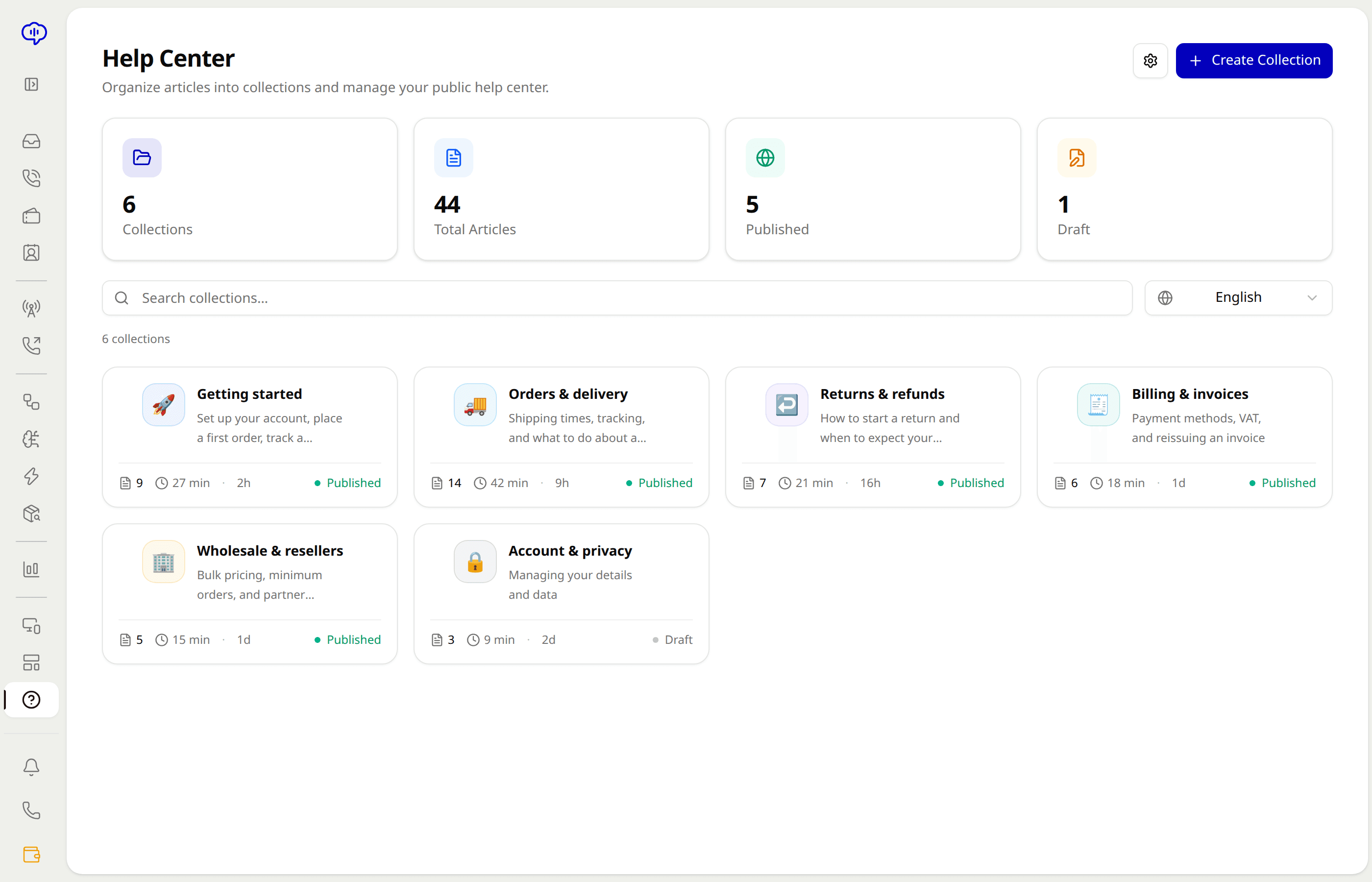
Reorganize your help center in seconds by dragging articles and categories into place.
Build nested subcategories to keep even complex product docs clear and easy to navigate.
Give each category its own icon and description so visitors instantly know where to look.
Auto-suggest related articles within a category so customers find the next answer without searching.
Turn scattered docs into a clean, browsable help center customers actually enjoy using.
A structure that grows with your content, so adding new product areas never means starting over.
Set up top-level categories with clear icons and descriptions.
Drag articles into categories and nest subcategories as your docs grow.
Related-article suggestions lead readers to the next answer automatically.
Use drag-and-drop to arrange articles into categories, with nested subcategories for more complex documentation.
Yes. Each category can have its own icon and description so customers instantly know where to browse.
Yes. Nateq auto-suggests related articles within categories so readers move to the next answer easily.
Yes. Nested categories are designed to keep even large, complex documentation organized and navigable.
A great knowledge base deflects repetitive tickets and helps customers help themselves. Here’s how to build one that actually lowers ticket volume.
2 min read
Omnichannel customer support unifies every channel into one connected experience. Learn what it means, how it differs from multichannel, and how to deliver it.
2 min readBring every conversation into one intelligent platform. Try it free for 14 days, no card required.