Product
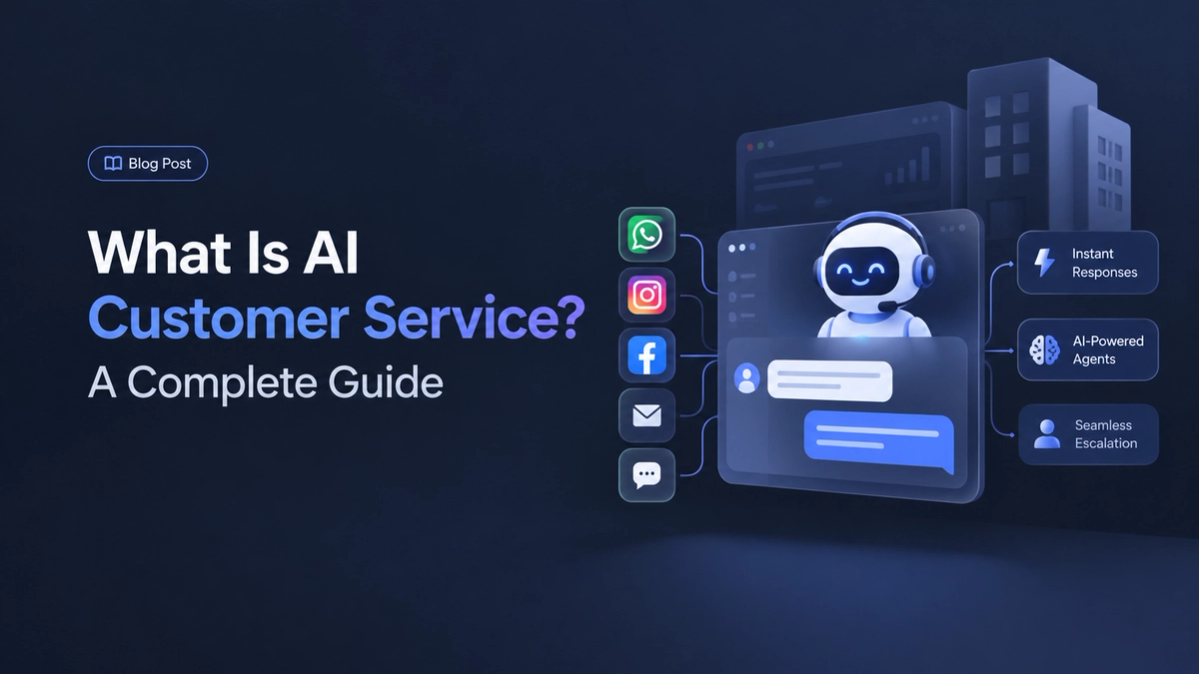
What Is AI Customer Service? A Complete Guide
AI customer service uses artificial intelligence to answer questions, route tickets, and support agents. Here is how it works and why it matters.
2 min readNateq's live chat widget sits on your website or inside your app. The AI agent answers visitors from the content you give it, then hands the chat to your team with the conversation attached. Every chat lands in the same inbox as your email, calls and social messages.

Nateq's live chat is a website widget that an AI agent answers first. The agent replies from the content you connect, in the language the visitor writes in, and hands the chat to a person on your team when the question needs one. Each chat appears in the shared inbox with its history, and the widget can be branded and limited to the domains you choose.
Last updated:
The AI agent replies as soon as the visitor writes, using the content you connected, so routine questions do not wait for an agent.
A chat that needs a person goes to an agent who is online and under their chat limit, starting with the least loaded.
Set the widget colors, floating button color, logo, position, shape and size, and the greeting the AI opens with.
Chats sit beside email, calls, WhatsApp, Facebook and Instagram, so an agent sees one history per customer.
Paste one snippet with your widget's configuration ID. The script loads asynchronously, so it does not hold up your page while it loads.
Open the install dialog for your widget, choose where it runs, and copy the snippet for that platform. Nateq has snippets for plain HTML, Next.js with the App or Pages router, React, Vue, Angular or Svelte, WordPress, Shopify, Google Tag Manager and Webflow. Apps have separate guides for iOS and Android. A widget that is still a draft installs without appearing, so check the status first when nothing shows up on the page.
When a visitor opens the launcher, the widget shows the greeting and the AI agent you selected. The launcher can show the default chat icon, an emoji or your own image, with an optional text label. Sound notifications can be turned on or off in the appearance settings. If you select no AI agent, the widget still works, and every chat is queued for a person.
The AI hands over when it cannot resolve the question, or when the visitor asks for a person. The visitor sees a line such as the AI transferring them to a named agent, or a notice that they are waiting for the team with an estimated wait.
A chat is assigned to an agent who is online and below their concurrent chat limit. If several agents qualify, the one with the fewest open chats gets it. The agent sees the conversation so far, including what the AI already told the visitor, so nobody has to ask the same question twice.
You decide when the widget asks for a name and email. It can ask before the chat starts, after the AI's first reply, or only when the visitor asks for a person. Chats the AI resolves on its own stay anonymous. Any field the visitor has already given is skipped, so they are never asked twice.
The widget has three tabs. Chat holds the live conversation. FAQ lists your help content with a search box, so a visitor can find an answer without starting a chat. Tickets lists the requests the visitor has raised. A ticket opened from a chat gets a reference number and moves through four statuses: Open, In progress, Resolved and Closed. Updates reach the visitor in the widget and by email.
Continue on WhatsApp moves a web conversation to a phone. The visitor enters a mobile number, Nateq sends an approved WhatsApp template from the number you choose, and the earlier messages carry over. Replies reach the visitor in both places, and the chat stays saved on the site. This needs a connected WhatsApp Business number and an approved template.
Proactive rules open the chat for a visitor who meets a condition you set. A rule can fire once a visitor has spent a set number of seconds on the page, on pages whose address contains a piece of text, or for visitors who have been on the site before. Your app can also report its own events with the track command, and a rule can fire on one of them. Keep the rules few, because each one is a message the visitor did not ask for.
The widget asks "still there?" after the warning time, then closes the conversation after the auto-close time, which must be longer than the warning. Separately, a chat with an agent closes once the agent has replied and the visitor has not answered for the number of hours you set. Setting that number to zero keeps those chats open.
A visitor asks about plans after the team has gone home. The AI answers from the pricing content you connected, in the visitor's language. If they ask for a quote, the chat waits in the queue for the next available agent, who opens it with the whole exchange in front of them.
Halfway through a question, the visitor wants to continue on their phone. They enter a mobile number and carry on in WhatsApp with the earlier messages, while the chat stays on the site.
A visitor steps away after a question. The widget asks whether they are still there, then closes the chat once the idle time runs out, so no chat sits open with nobody answering.
A customer opens the widget to see where their request stands. The Tickets tab shows the reference number and the current status, so they do not need to write in and ask.
Illustrative. The exchange is a sample, not a recording of a customer.
| Question | Nateq | Standalone chat box |
|---|---|---|
| Who replies first | An AI agent answers from your content, then a person takes over when needed. | Whoever is watching the dashboard, or an automated greeting with no answers. |
| Where the chat goes | The shared inbox, next to email, calls, WhatsApp and social messages. | A separate chat dashboard that the rest of the team may not open. |
| After the chat ends | The chat stays on the customer's history, and a ticket keeps the open request with a reference number. | A transcript by email if it is sent at all, or nothing once the tab closes. |
Copy the snippet for your platform and paste it into your site. The widget stays hidden until you publish it.
Pick the agent that answers first, or choose no AI so every chat goes straight to a person. Then set the supported languages.
Decide when visitors are asked for contact details, and how long an idle chat waits before the widget nudges and closes it.
Yes. You can set the widget and button colors, add your logo, choose the launcher icon, position, shape and size, and write the greeting. The appearance settings also control whether sound notifications play and whether a team appears on the home screen.
Yes, if you select an AI agent for the widget. It answers each message as it arrives, from the content you connected. It hands the chat to a person when it cannot resolve the question or when the visitor asks for one. If you select no agent, every chat goes to a person.
Yes. The widget supports Arabic and English, with right-to-left layout for Arabic text. The AI replies in the language the visitor writes in, including Franco-Arabic, which is Arabic written in Latin letters. The widget's own labels, from the chat header to the ticket screens, come in both languages, so the visitor never sees an untranslated screen.
The visitor sees that they are waiting for the team, with an estimated wait when one is available. The AI can keep answering in the meantime. A visitor can also open a ticket from the chat, which gets a reference number and is updated by email as your team works on it.
Yes. Add the domains you control to the allowed domains list, with a wildcard for subdomains if you need one. Requests from any other domain are rejected. If the list is empty, the widget can run on any site. Mobile apps need their own setting, because an app has no website domain to match.
Yes, with a connected WhatsApp Business number and an approved template. The visitor enters a mobile number, and the conversation moves to WhatsApp with the earlier messages. Replies reach them in both places, and the chat stays saved on your site.
Nateq provides install guides for plain HTML, Next.js, React, Vue, Angular and Svelte, WordPress, Shopify, Google Tag Manager and Webflow. Mobile apps have separate guides for iOS and Android. The install dialog shows the snippet for the platform you pick, with your widget's configuration ID already filled in.
AI customer service uses artificial intelligence to answer questions, route tickets, and support agents. Here is how it works and why it matters.
2 min read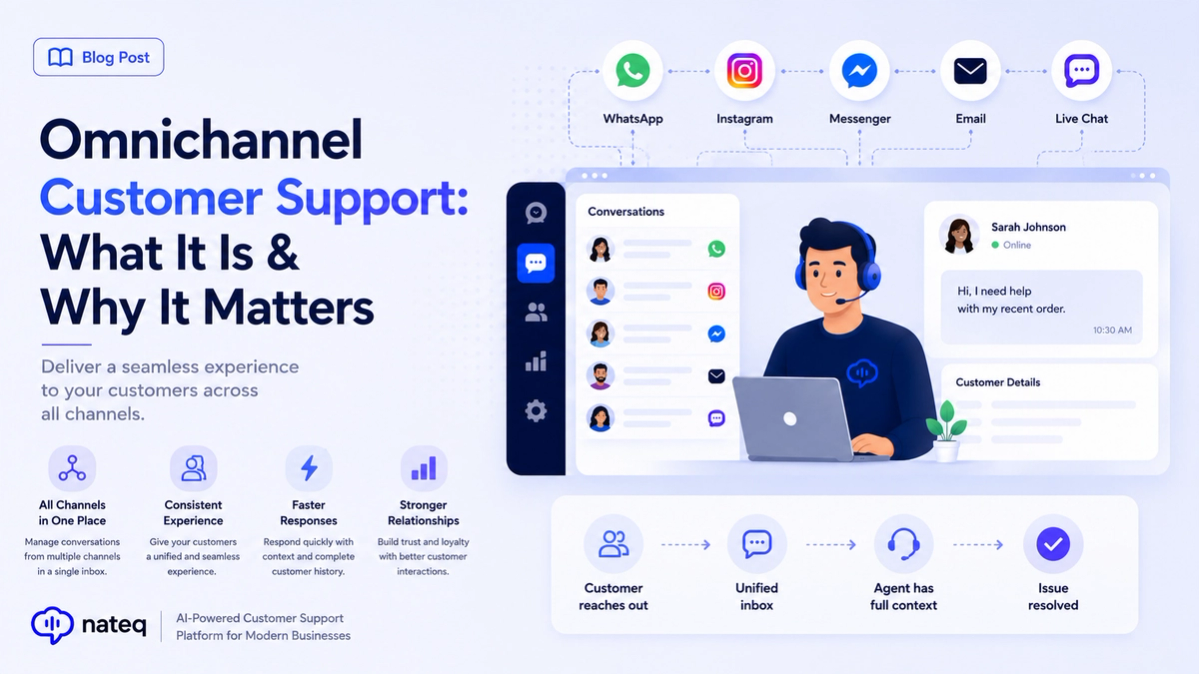
Omnichannel customer support unifies every channel into one connected experience. Learn what it means, how it differs from multichannel, and how to deliver it.
2 min readBring every conversation into one intelligent platform. Try it free for 14 days — no card required.